Connect a Warehouse
Experimentation is in beta on Enterprise plans. Get in touch to join.
Experiment data (exposures and conversion events) is stored and queried in a data warehouse. Each environment has one warehouse connection, and it must be in place before you can create experiments.
Connect the Flagsmith warehouse
The Flagsmith warehouse is managed and hosted by Flagsmith. There is nothing to provision or configure, and there is no additional cost — it is included in your Enterprise plan.
- Go to Environment Settings > Warehouse.
- Select Flagsmith and click Enable, then confirm.
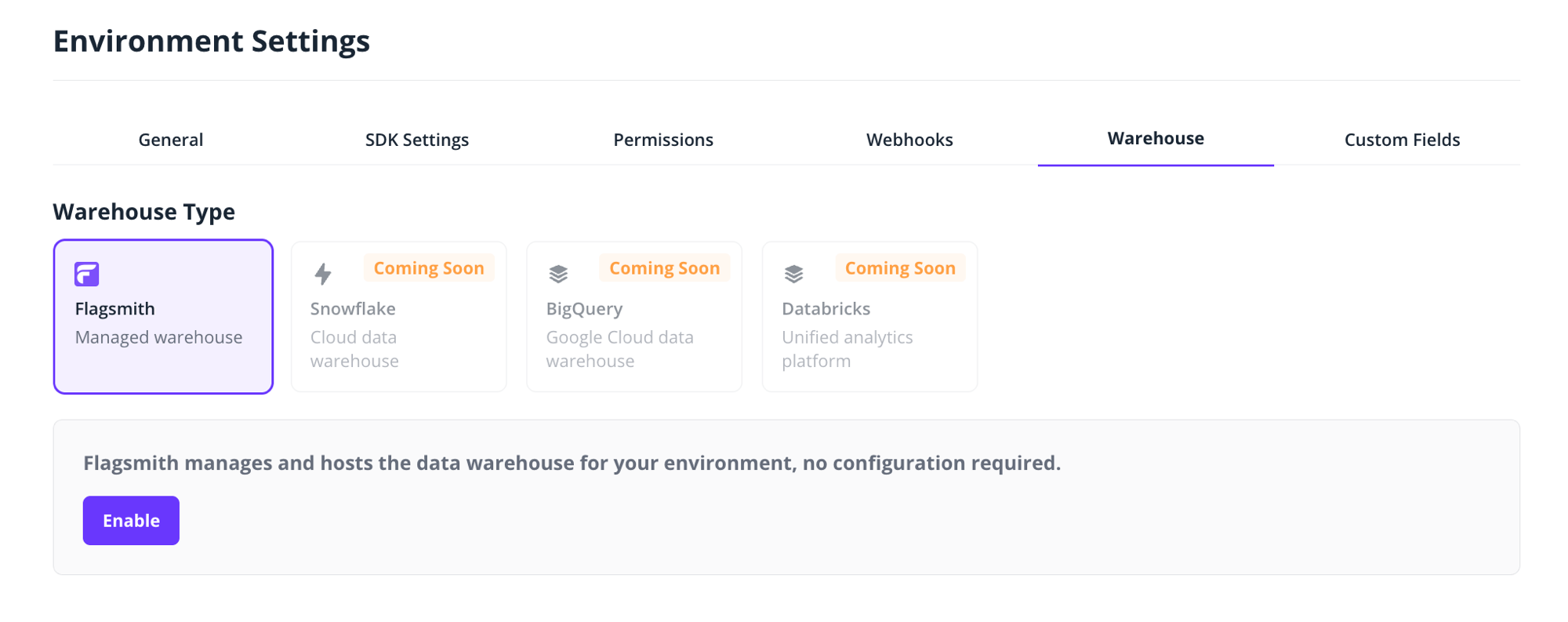
The connection is created immediately. To verify that events can flow, click Send your first event and Flagsmith sends a test event on your behalf. The connection shows Pending Connection while it waits for the first event, and switches to Connected as soon as the environment's first event arrives; an event sent from your own application counts too, not just the test event.
Processing the first event can take up to a few hours. The status refreshes about once a minute while you keep the Warehouse tab open.
Once connected, the warehouse card shows the total number of events received and the number of unique event names, which is useful to verify that instrumentation data is arriving.
Connection statuses
The current status is shown on the warehouse card in Environment Settings > Warehouse.
- Created: the connection exists but no events have been received yet.
- Pending Connection: waiting for the first event to arrive.
- Connected: events have been received; you are ready to run experiments.
- Errored: something went wrong; contact support.
Bring your own ClickHouse
Instead of the managed Flagsmith warehouse, you can store experiment events in your own ClickHouse instance, so experiment data never leaves your data platform.
- Create the database and events table by running the following against your ClickHouse instance. This is a one-off setup step; the same SQL is available to copy from the warehouse card in the Flagsmith dashboard.
CREATE DATABASE IF NOT EXISTS flagsmith_exp;

CREATE TABLE IF NOT EXISTS flagsmith_exp.events
(
    environment_key      LowCardinality(String),
    event                LowCardinality(String),
    feature_name         LowCardinality(String),
    timestamp            DateTime64(3),
    collected_at         DateTime64(3),
    identifier           String,
    value                String                          CODEC(ZSTD(3)),
    traits               String                          CODEC(ZSTD(3)),
    metadata             String                          CODEC(ZSTD(3)),
    sdk_language         LowCardinality(String),
    sdk_version          LowCardinality(String),

    INDEX idx_identity identifier TYPE bloom_filter GRANULARITY 4,

    CONSTRAINT environment_key_not_empty CHECK environment_key != '',
    CONSTRAINT event_not_empty           CHECK event != '',
    CONSTRAINT timestamp_sane            CHECK timestamp > toDateTime64('2020-01-01 00:00:00', 3)
)
ENGINE = MergeTree
PARTITION BY toYYYYMMDD(timestamp)
ORDER BY (environment_key, event, feature_name, timestamp, identifier);
- Go to Environment Settings > Warehouse, select ClickHouse and enter your connection details: host, port (9440
by default, the native protocol port), database, username and password. The configured user needs
INSERTpermission onflagsmith_exp.events. - Click Test connection. Once the test succeeds, save the connection.
Connections use the ClickHouse native protocol, with TLS enabled by default.
Coming soon
Bring your own warehouse: connections for Snowflake, BigQuery and Databricks, so experiment results are computed directly in your own data platform.